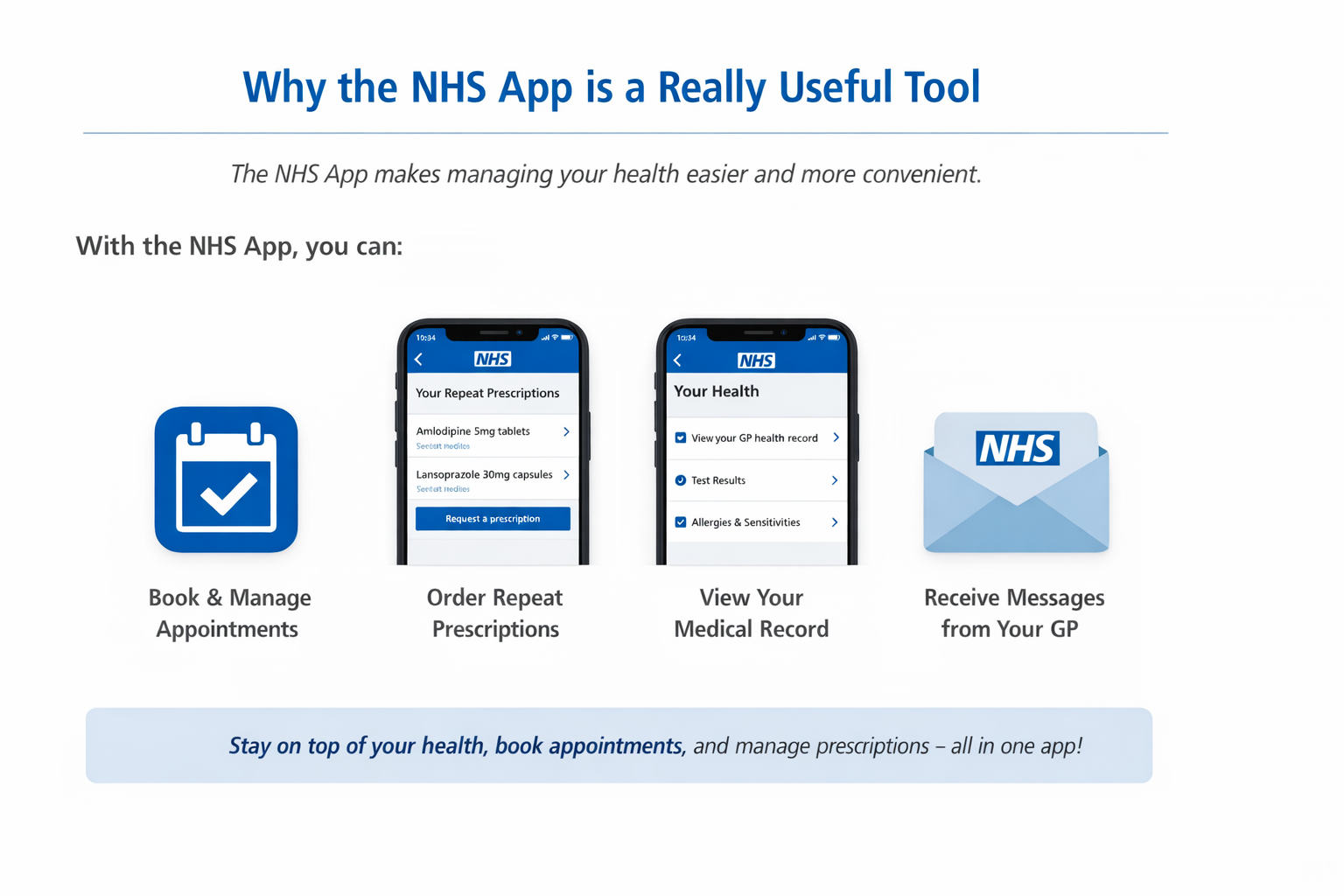
The NHS apps useful as it helps you to manage your healthcare quickly and easily. With the app, you can book and manage appointment, order repeat medication, view your medical records, receive direct messages from the surgery. Using the NHS app can save you time and give you more control over your health.
Step by Step: Download the NHS app
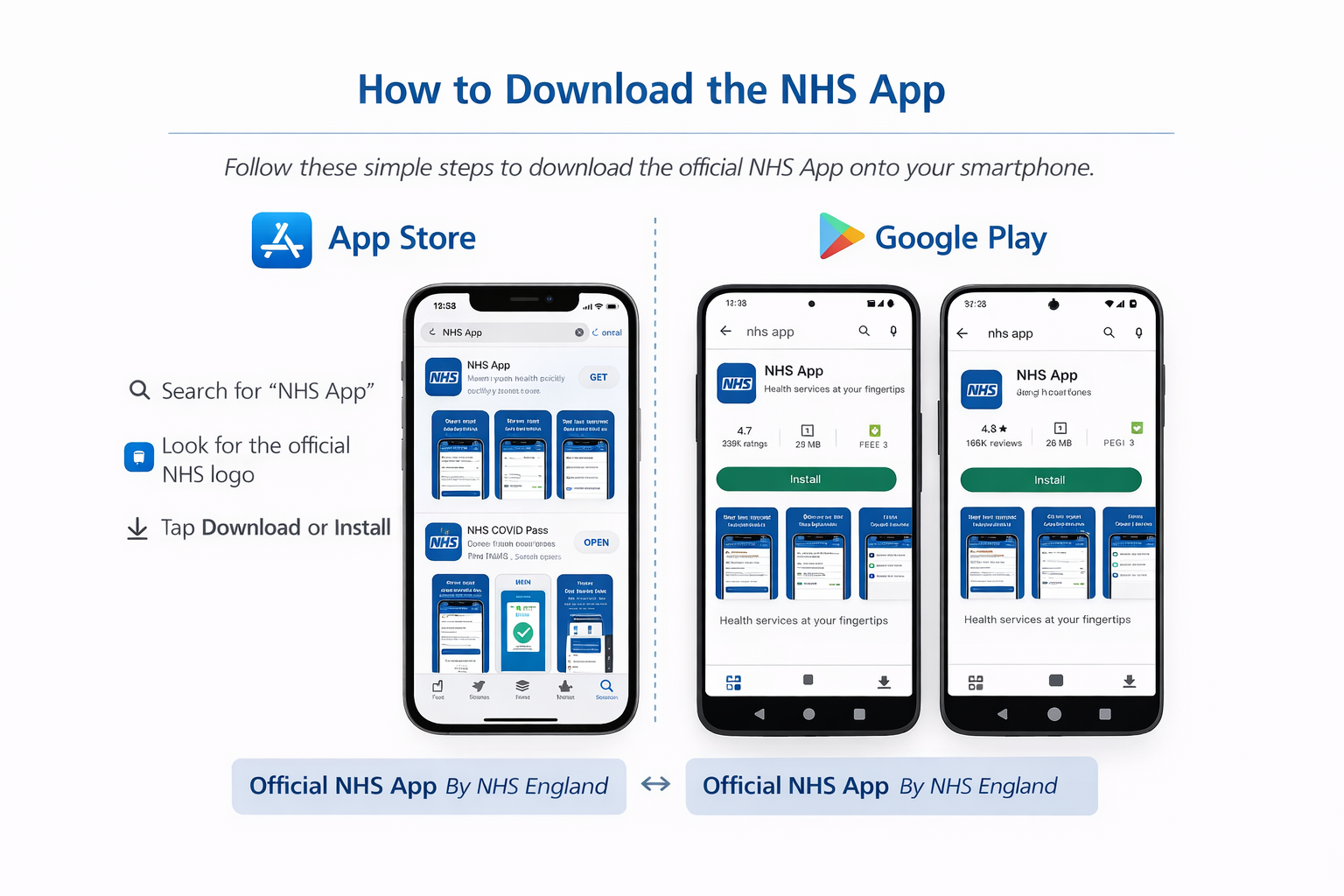
- Open the App store (on iPhone) or Google play store (android)
- Search ‘NHS app’, looking for the official NHS logo
- Tap ‘Download’ or ‘install’.
Register for an Account and Verify Identity
- Enter your email address and select continue.
- Create a password ad type it into both both and select continue.
- Accept the NHS login terms and conditions.
- A security code will be sent to you via email, enter this code into the NHS app when asked.
- Input either your NHS number or date of birth and postcode then select continue.
- Accept the conditions of use
- Verify your identity by displaying either a passport or UK driving license (if you do not have these forms of ID, you may be asked to contact the surgery)
- Verify your identity using the photo ID and dace scan by taking a photo of your ID, then complete a face scan.
Step by Step: Turn On Notifications
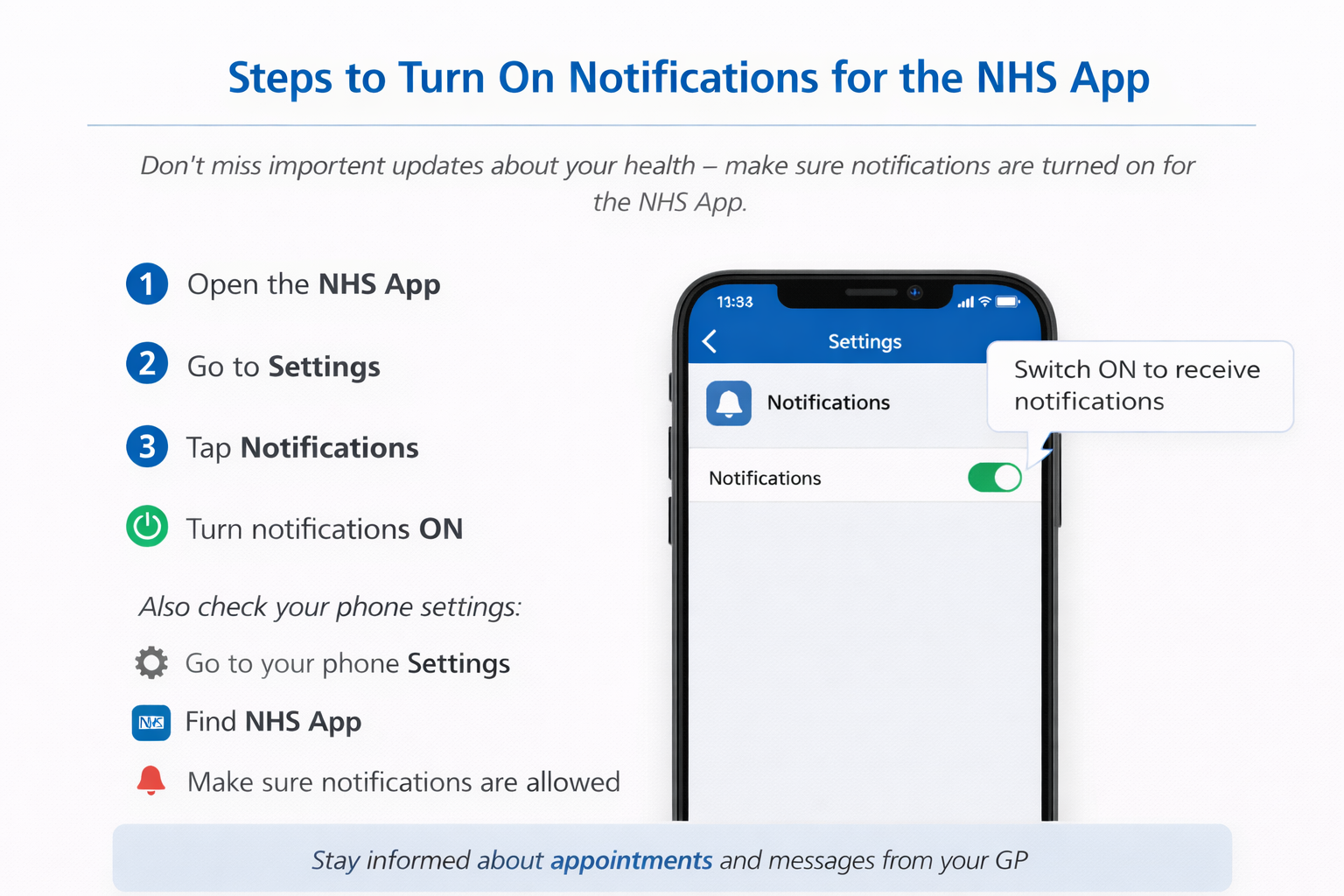
- Open the NHS app
- Go to settings (icon at the top right hand side of the app)
- Tap notifications
- Turn notifications ON
- Please also check phone settings under notifications
- search for the NHS app
- Ensure notifications are switched on
Need Help?
Come into the surgery or phone us, asking to speak with Tom. I am happy to assist with issues pertaining to online access and am more than happy to help guide you through this process.
